世界空间界面
世界空间界面位于场景中,例如墙上标牌、机器控制面板、角色姓名或 XR 菜单。它使用与 HUD 相同的元素,放到世界空间屏幕上,由场景摄像机像普通对象一样观察。
世界空间屏幕
世界空间屏幕由实体变换定位,resolution 表示局部单位下的尺寸,并以实体为中心:
- 引擎
- 编辑器
- React
- Web Components
// A 400 × 240 unit panel, scaled to 1.6 × 0.96 meters, two meters up
const sign = new pc.Entity('sign');
sign.addComponent('screen', {
    screenSpace: false,
    resolution: [400, 240]
});
sign.setLocalScale(0.004, 0.004, 0.004);
sign.setPosition(0, 2, -3);
app.root.addChild(sign);

const background = new pc.Entity('background');
background.addComponent('element', {
    type: pc.ELEMENTTYPE_IMAGE,
    anchor: [0, 0, 1, 1],
    margin: [0, 0, 0, 0],
    color: new pc.Color(0.16, 0.18, 0.23)
});
sign.addChild(background);

const title = new pc.Entity('title');
title.addComponent('element', {
    type: pc.ELEMENTTYPE_TEXT,
    fontAsset: font.id,
    text: 'Exit',
    fontSize: 96,
    anchor: [0.5, 0.5, 0.5, 0.5],
    pivot: [0.5, 0.5]
});
sign.addChild(title);
在层级选择 + › User Interface › 3D Screen,实体初始缩放为 0.01。上例标牌可将 Resolution 设为 400 × 240、缩放为 0.004,再在场景中定位和旋转,像二维屏幕一样添加子元素。
<Entity name="sign" position={[0, 2, -3]} scale={[0.004, 0.004, 0.004]}>
  <Screen screenSpace={false} resolution={[400, 240]} />
  <Entity name="background">
    <Element type="image" anchor={[0, 0, 1, 1]} margin={[0, 0, 0, 0]} color="#292e3b" />
  </Entity>
  <Entity name="title">
    <Element type="text" fontAsset={font} text="Exit" fontSize={96}
      anchor={[0.5, 0.5, 0.5, 0.5]} pivot={[0.5, 0.5]} />
  </Entity>
</Entity>
<pc-entity name="sign" position="0 2 -3" scale="0.004 0.004 0.004">
    <pc-screen resolution="400 240"></pc-screen>
    <pc-entity name="background">
        <pc-element type="image" anchor="0 0 1 1" margin="0 0 0 0" color="#292e3b"></pc-element>
    </pc-entity>
    <pc-entity name="title">
        <pc-element type="text" font-asset="arial" text="Exit" font-size="96"
                    anchor="0.5 0.5 0.5 0.5" pivot="0.5 0.5"></pc-element>
    </pc-entity>
</pc-entity>
尺寸与缩放
米制尺寸等于分辨率乘实体缩放。像二维界面一样按布局选择分辨率,再通过缩放控制世界中的大小:
| 分辨率 | 缩放 | 米制尺寸 | 字号 32 的文本 |
|---|---|---|---|
| 640 × 320 | 0.01 | 6.4 × 3.2 | 高 32 厘米 |
| 400 × 240 | 0.004 | 1.6 × 0.96 | 高 12.8 厘米 |
| 1000 × 600 | 0.001 | 1 × 0.6 | 高 3.2 厘米 |
世界空间屏幕没有缩放模式,元素的世界尺寸固定,观察距离越远,看起来越小。
背面观察
世界空间屏幕是单面的,背面既不绘制,也不接收输入。双面标牌可将两个屏幕背靠背摆放,第二个绕 Y 轴旋转 180 度。
深度与绘制顺序
世界空间元素默认位于最后绘制的 UI 图层,通常会与场景深度测试,因此被墙遮挡。但使用 CameraFrame 时,UI 在后处理后绘制,没有场景深度,就会穿墙。将其纳入场景的方法详见世界空间界面与后处理。
面向摄像机
姓名牌等始终朝向观察者的面板,可以每帧复制摄像机旋转,保持与视图平行,避免斜看文字:
app.on('update', () => {
    nameTag.setRotation(camera.getRotation());
});
角色上方标签
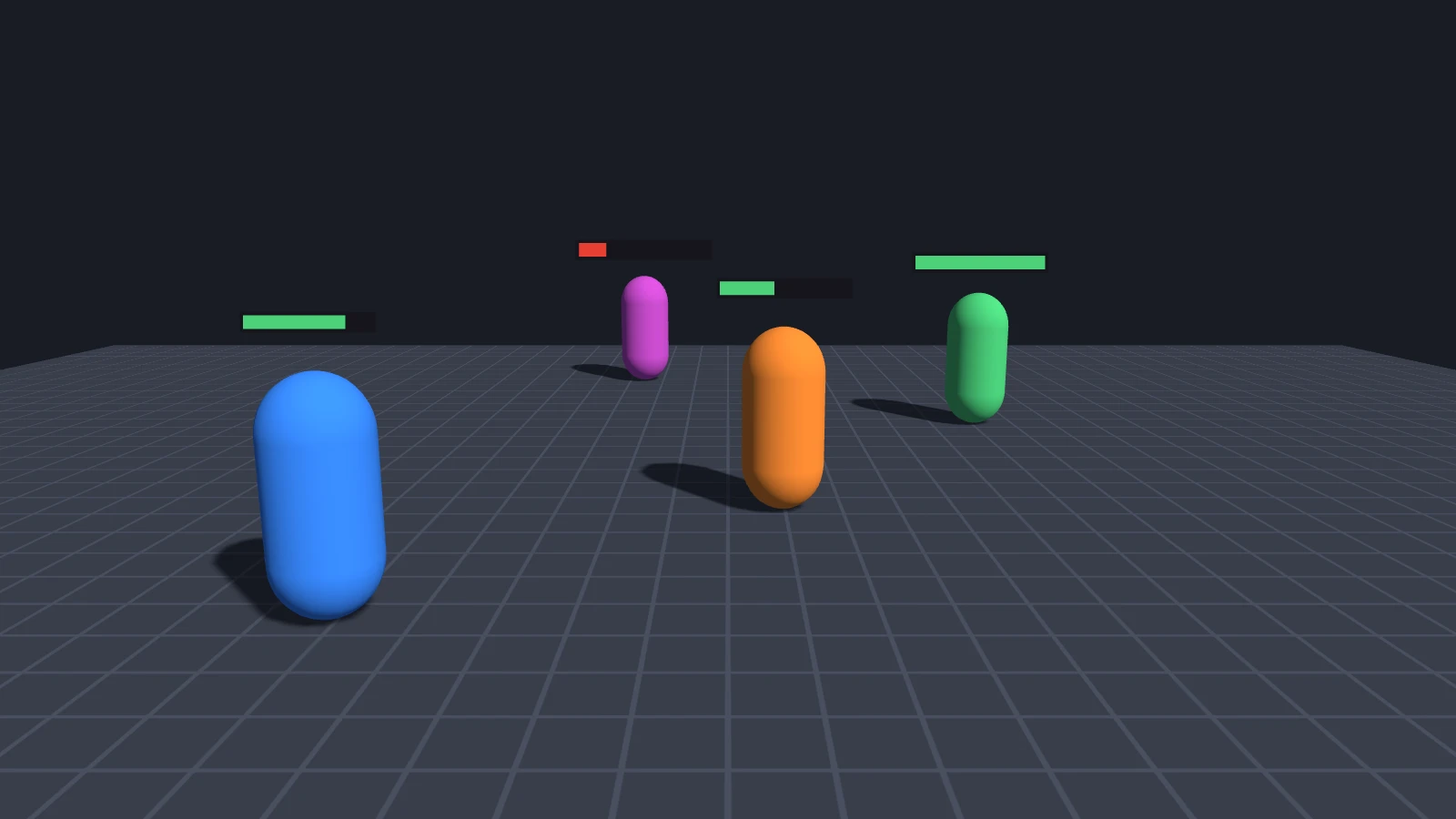
角色标签、血条和标记可用两种方式:
| 作为角色子项的世界空间屏幕 | 每帧移到角色投影位置的屏幕空间元素 | |
|---|---|---|
| 屏幕尺寸 | 越远越小 | 始终相同 |
| 被墙遮挡 | 是,除非使用 CameraFrame | 否,覆盖场景 |
| 面向摄像机 | 需要额外处理 | 始终如此 |
世界空间屏幕作为角色子项放在头顶,会随角色移动。屏幕空间方式则先通过摄像机 worldToScreen 取得画布位置,再转换为屏幕单位:
// The label is on a screen-space screen, anchored to its bottom-left corner: anchor 0, 0, 0, 0
const head = new pc.Vec3();
const onCanvas = new pc.Vec3();
const inView = new pc.Vec3();
const overHead = new pc.Vec3(0, 2.2, 0);

app.on('update', () => {
    head.add2(character.getPosition(), overHead);
    // CSS pixels from the canvas's top-left corner
    camera.camera.worldToScreen(head, onCanvas);

    // Hide the label when the character is behind the camera, which its depth in view space
    // tells: a point in front of the camera has a negative z
    camera.camera.viewMatrix.transformPoint(head, inView);
    label.enabled = inView.z < 0;

    // One CSS pixel is canvas.width / canvas.clientWidth pixels of the drawing buffer, and one
    // screen unit is screen.scale of them. The screen's y axis points up, the canvas's down
    const canvas = app.graphicsDevice.canvas;
    const units = (canvas.width / canvas.clientWidth) / screen.screen.scale;
    label.setLocalPosition(onCanvas.x * units, (canvas.clientHeight - onCanvas.y) * units, 0);
});
将标签轴心设为底边中央 0.5, 0,使其显示在投影点上方。大量标签应集中到一个 update 更新,并跳过过远或屏幕外角色。
也可以使用 HTML 标签,直接按 CSS 像素定位,无需单位转换,详见 HTML 与 CSS。
交互
启用输入后,世界空间元素与屏幕空间元素接收相同的鼠标、触摸和 XR 控制器事件。摄像机必须渲染其图层。屏幕空间优先检测;世界空间屏幕重叠时,优先级较高者接收事件,与距离无关,详见命中检测。
另请参阅
- 屏幕:空间、分辨率与缩放。
- XR 界面:世界面板、控制器和手。
- 绘制顺序与性能:图层、摄像机和深度。
- Screen 组件、
<pc-screen>和 ScreenComponent:全部屏幕属性参考。