状态图
状态图是模型动画的状态机。状态表示待机、行走、跳跃等动作;过渡定义何时、以多长交叉淡化、在什么条件下进入其他状态。条件检查代码设置的参数,例如速度。代码设置参数,状态图选择片段。
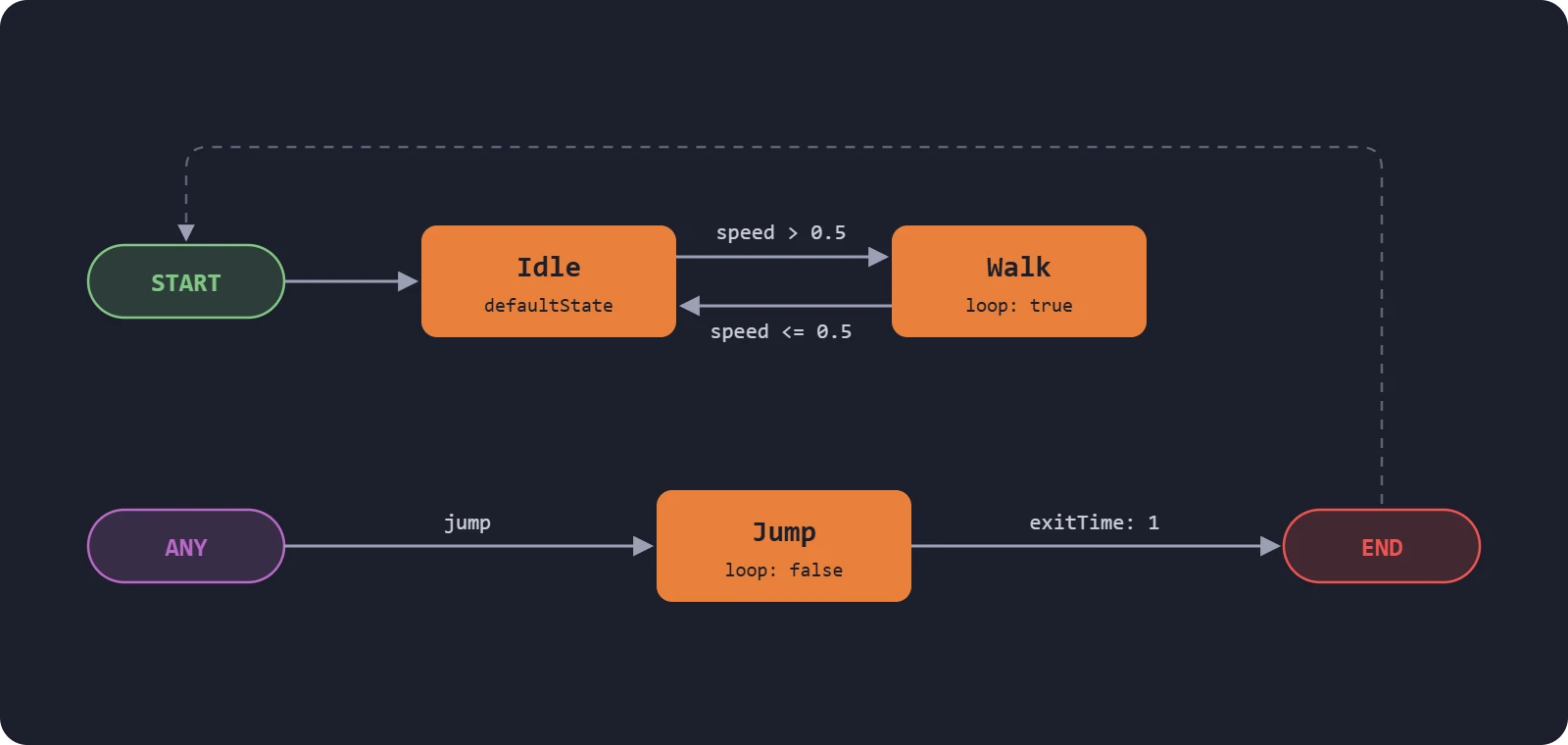
状态图不包含片段,只是模板。各 anim 为状态绑定自己的片段,因此逻辑相同的角色可共享状态图、使用不同动画。至少包含一个图层,各层独立运行状态机,见图层与遮罩。
状态
同一图层每次只有一个活动状态,共四类。
动画状态
播放一个片段,或通过混合树混合多个。包含层内唯一名称、片段速度倍数和循环设置。非循环状态保持末帧,直到过渡退出。
START
各层从 START 直接进入默认状态,不允许其他进出 START 的过渡。
END
进入 END 会退出当前图,然后立即回到 START 和默认状态,适合从任意序列结束处返回,无需另画过渡。
ANY
ANY 的过渡可从任意当前状态触发,适合跳跃、受击等全局动作,避免逐个状态连接。不能创建进入 ANY 的过渡。
过渡
过渡连接两个状态,设置包括:
| 设置 | 说明 |
|---|---|
Duration(time) | 交叉淡化秒数,0 立即切换。 |
Exit time(exitTime) | 相对源片段时长的比例。小于 1 时每轮都可触发,0.75 为每轮四分之三处;1 为首次末尾,2.5 为第三轮中点。没有退出时间则随时可触发。 |
Offset(transitionOffset) | 目标片段起始位置,为时长的 0 到 1 比例。 |
Interruption source(interruptionSource) | 淡化中允许哪些过渡打断:无、源状态、目标状态,或按指定顺序考虑两者。 |
Conditions(conditions) | 参数条件,全部通过才能过渡。 |
没有退出时间也没有条件时立即过渡;不会过渡到已活动状态。多个过渡同时满足时,priority 最小者优先,活动状态过渡先于 ANY。
参数与条件
参数是状态图输入,具有名称、类型和默认值:
- Float、Integer 和 Boolean 保留最后设置的值。
- Trigger 是被过渡使用后重置为
false的布尔值,适合跳跃等单次事件。默认保持直到被使用;setTrigger()第二个参数传true,则无论是否被使用都在帧末重置。
在 anim 上按名称设置:
entity.anim.setFloat('speed', 1.2);
entity.anim.setInteger('weapon', 2);
entity.anim.setBoolean('crouching', true);
entity.anim.setTrigger('jump');
条件通过 ==、!=、<、<=、>、>= 比较参数与数值,数据常量对应 pc.ANIM_EQUAL_TO、pc.ANIM_NOT_EQUAL_TO、pc.ANIM_LESS_THAN、pc.ANIM_LESS_THAN_EQUAL_TO、pc.ANIM_GREATER_THAN 和 pc.ANIM_GREATER_THAN_EQUAL_TO。
创建状态图
下面是上图对应的引擎数据,编辑器生成相同结构。
const stateGraph = {
    layers: [{
        name: 'Base',
        states: [
            { name: 'START' },
            { name: 'Idle', loop: true, defaultState: true },
            { name: 'Walk', loop: true },
            { name: 'Jump', loop: false },
            { name: 'ANY' },
            { name: 'END' }
        ],
        transitions: [
            { from: 'START', to: 'Idle' },
            { from: 'Idle', to: 'Walk', time: 0.2, conditions: [{ parameterName: 'speed', predicate: pc.ANIM_GREATER_THAN, value: 0.5 }] },
            { from: 'Walk', to: 'Idle', time: 0.2, conditions: [{ parameterName: 'speed', predicate: pc.ANIM_LESS_THAN_EQUAL_TO, value: 0.5 }] },
            { from: 'ANY', to: 'Jump', time: 0.1, conditions: [{ parameterName: 'jump', predicate: pc.ANIM_EQUAL_TO, value: true }] },
            { from: 'Jump', to: 'END', time: 0.2, exitTime: 1 }
        ]
    }],
    parameters: {
        speed: { name: 'speed', type: pc.ANIM_PARAMETER_FLOAT, value: 0 },
        jump: { name: 'jump', type: pc.ANIM_PARAMETER_TRIGGER, value: false }
    }
};
- 引擎
- 编辑器
- React
- Web Components
加载到组件,再通过图层给各状态分配片段:
character.addComponent('anim', { activate: true });
character.anim.loadStateGraph(stateGraph);

const layer = character.anim.baseLayer;
layer.assignAnimation('Idle', idleTrack);
layer.assignAnimation('Walk', walkTrack);
layer.assignAnimation('Jump', jumpTrack);
所有状态都有片段后开始播放。
图层 assignAnimation() 保留图中定义的速度和循环。组件 entity.anim.assignAnimation() 则以参数覆盖,默认速度 1、循环,因此上面的 Jump 也会循环。应显式传入所需值,或通过图层分配。
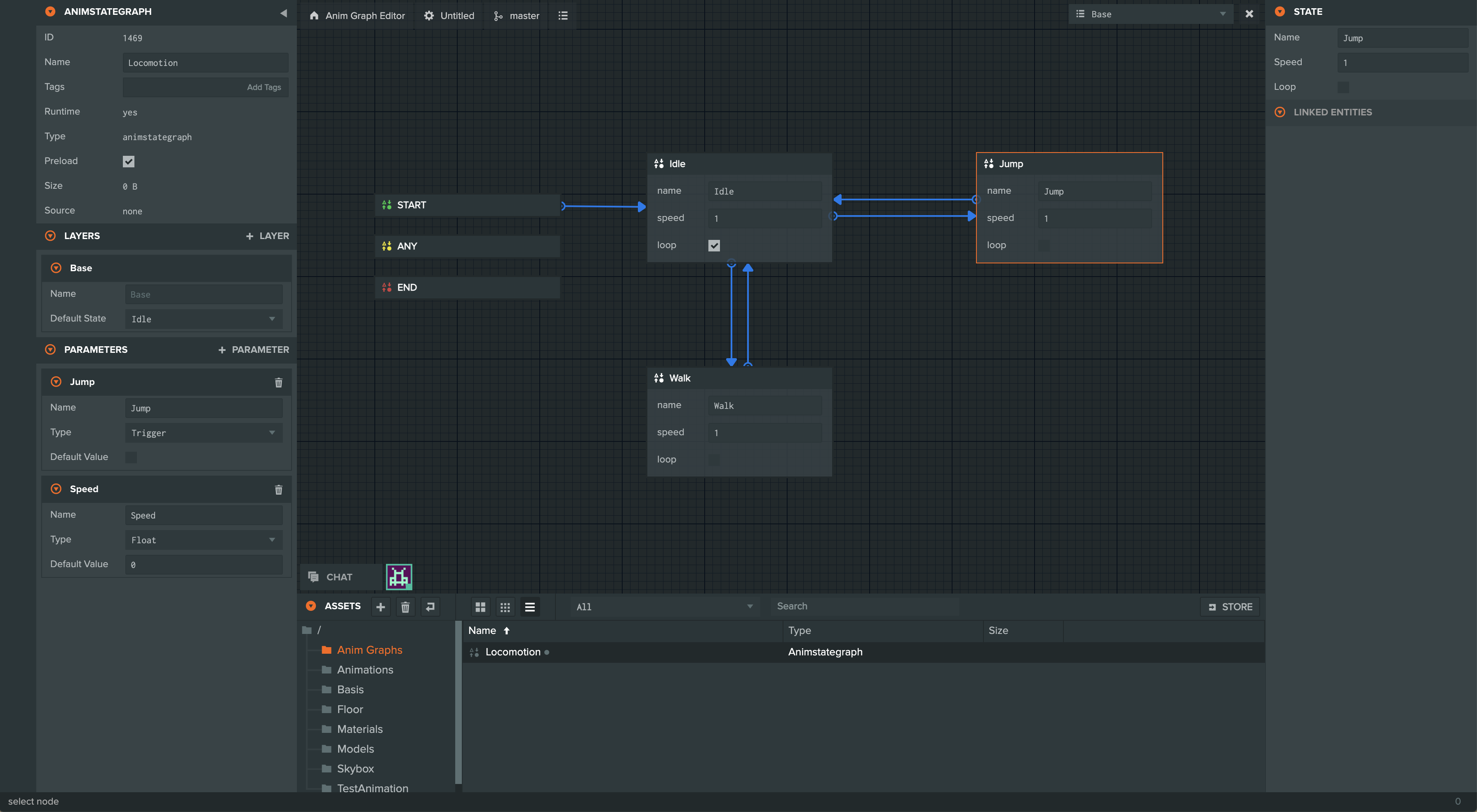
- 资源面板点击 +,选择 Anim State Graph,选中资源打开图编辑器。
- 右键画布选 Add new state,为各状态设置 Name、Speed、Loop。在左侧图层设置中选择 Default State。
- 右键状态选 Add transition,点击目标。选箭头设置 Duration、Offset、Interruption Source,启用 Has Exit Time 设置 Exit Time,通过 New Condition 添加条件。同一对状态的多个过渡可拖动排序。
- 左侧点击 + PARAMETER 添加参数。
- 在实体 Anim 中选择 State Graph,将动画资源拖到各状态槽位。
在模型 <Entity> 内、<Anim playing /> 后添加自定义组件,加载图和片段:
import { useEffect } from 'react';
import { useParent } from '@playcanvas/react/hooks';

function Locomotion({ tracks }) {
  const entity = useParent();

  useEffect(() => {
    entity.anim.loadStateGraph(stateGraph);
    entity.anim.baseLayer.assignAnimation('Idle', tracks.idle);
    entity.anim.baseLayer.assignAnimation('Walk', tracks.walk);
    entity.anim.baseLayer.assignAnimation('Jump', tracks.jump);
  }, [entity, tracks]);

  return null;
}
<pc-anim>用于无状态图播放,片段变化时会替换图。因此需要状态图时不要使用它,直接通过代码给模型实体添加 anim:
<pc-asset id="character" src="character.glb"></pc-asset>
<pc-scene>
    <pc-model name="character" asset="character"></pc-model>
</pc-scene>

<script type="module">
    import { whenReady } from '@playcanvas/web-components';

    const model = await whenReady('pc-model[name="character"]');
    const container = document.getElementById('character').asset.resource;
    const tracks = Object.fromEntries(container.animations.map(animation => [animation.resource.name, animation.resource]));

    model.entity.addComponent('anim', { activate: true });
    model.entity.anim.loadStateGraph(stateGraph);
    model.entity.anim.baseLayer.assignAnimation('Idle', tracks.idle);
    model.entity.anim.baseLayer.assignAnimation('Walk', tracks.walk);
    model.entity.anim.baseLayer.assignAnimation('Jump', tracks.jump);
</script>
驱动状态图
图加载后,根据输入、物理或玩法逻辑设置参数。速度等连续值每帧更新,触发器在事件发生时设置。
- 引擎
- 编辑器
- React
- Web Components
app.on('update', () => {
    character.anim.setFloat('speed', velocity.length());
});
app.keyboard.on('keydown', (event) => {
    if (event.key === pc.KEY_SPACE) character.anim.setTrigger('jump');
});
从实体脚本设置参数:
import { KEY_SPACE, KEY_UP, Script } from 'playcanvas';

export class CharacterAnimation extends Script {
    static scriptName = 'characterAnimation';

    update(dt) {
        const moving = this.app.keyboard.isPressed(KEY_UP);
        this.entity.anim.setFloat('speed', moving ? 1 : 0);

        if (this.app.keyboard.wasPressed(KEY_SPACE)) {
            this.entity.anim.setTrigger('jump');
        }
    }
}
prop 变化时设置参数:
function Speed({ value }) {
  const entity = useParent();

  useEffect(() => {
    entity.anim.setFloat('speed', value);
  }, [entity, value]);

  return null;
}
document.getElementById('jump-button').addEventListener('click', () => {
    model.entity.anim.setTrigger('jump');
});
图层 activeState 返回活动状态名,另有 previousState 和 transitioning。参数通过 getFloat()、getInteger()、getBoolean()、getTrigger() 读取。
复杂状态图可让 AI 助手通过**编辑器 MCP 服务器**追踪失败过渡的条件、参数、脚本和 Anim 映射,再在 Launcher 复现。
示例
机械臂先待机,设置 work 后抓取、放置,再返回。各动作是不循环状态,以退出时间 1 离开。点击画布设置触发器。
import * as pc from 'playcanvas';

// create the application with the component systems and resource handlers it uses
const canvas = document.getElementById('application');
const device = await pc.createGraphicsDevice(canvas, {
    deviceTypes: [pc.DEVICETYPE_WEBGPU]
});
device.maxPixelRatio = Math.min(window.devicePixelRatio, 2);

const options = new pc.AppOptions();
options.graphicsDevice = device;
options.componentSystems = [
    pc.RenderComponentSystem,
    pc.CameraComponentSystem,
    pc.LightComponentSystem,
    pc.AnimComponentSystem
];
options.resourceHandlers = [pc.ContainerHandler, pc.TextureHandler];

const app = new pc.AppBase(canvas);
app.init(options);
app.setCanvasFillMode(pc.FILLMODE_FILL_WINDOW);
app.setCanvasResolution(pc.RESOLUTION_AUTO);
window.addEventListener('resize', () => app.resizeCanvas());
app.start();

app.scene.ambientLight = new pc.Color(0.35, 0.35, 0.4);

// load the robot arm, a GLB with five animations
const asset = new pc.Asset('robot-arm', 'container', {
    url: 'https://developer.playcanvas.com/assets/robot-arm.glb'
});
await new Promise((resolve) => {
    asset.ready(resolve);
    app.assets.add(asset);
    app.assets.load(asset);
});

const camera = new pc.Entity('camera');
camera.addComponent('camera', {
    clearColor: new pc.Color(0.11, 0.12, 0.17)
});
camera.setPosition(1.75, 1.4, 2.15);
camera.lookAt(0, 0.75, 0);
app.root.addChild(camera);

const light = new pc.Entity('light');
light.addComponent('light', {
    castShadows: true,
    shadowBias: 0.2,
    normalOffsetBias: 0.05
});
light.setEulerAngles(48, 38, 0);
app.root.addChild(light);

const floor = new pc.Entity('floor');
const floorMaterial = new pc.StandardMaterial();
floorMaterial.diffuse = new pc.Color(0.24, 0.26, 0.31);
floorMaterial.update();
floor.addComponent('render', { type: 'plane', material: floorMaterial });
floor.setLocalScale(20, 1, 20);
app.root.addChild(floor);

// create the arm's entities, and give its root an anim component
const arm = asset.resource.instantiateRenderEntity({ castShadows: true });
arm.addComponent('anim', { activate: true });
app.root.addChild(arm);

// the arm idles until it is told to work, then picks, places and goes back to idling
arm.anim.loadStateGraph({
    layers: [{
        name: 'Base',
        states: [
            { name: 'START' },
            { name: 'Idle', loop: true },
            { name: 'Pick', loop: false },
            { name: 'Place', loop: false }
        ],
        transitions: [
            { from: 'START', to: 'Idle' },
            // the work trigger starts a cycle, and is reset when this transition uses it
            { from: 'Idle', to: 'Pick', time: 0.4, conditions: [{ parameterName: 'work', predicate: pc.ANIM_EQUAL_TO, value: true }] },
            // once a clip has played through, cross-fade to the next one
            { from: 'Pick', to: 'Place', time: 0.4, exitTime: 1 },
            { from: 'Place', to: 'Idle', time: 0.4, exitTime: 1 }
        ]
    }],
    parameters: {
        work: { name: 'work', type: pc.ANIM_PARAMETER_TRIGGER, value: false }
    }
});

// link each state to a GLB animation, keeping the speed and loop the graph gave it
const tracks = Object.fromEntries(asset.resource.animations.map(animation => [animation.resource.name, animation.resource]));
arm.anim.baseLayer.assignAnimation('Idle', tracks.idle);
arm.anim.baseLayer.assignAnimation('Pick', tracks.pick);
arm.anim.baseLayer.assignAnimation('Place', tracks.place);

// click to set the trigger
canvas.addEventListener('click', () => {
    arm.anim.setTrigger('work');
});

const label = document.createElement('div');
label.style.cssText = 'position: absolute; left: 12px; bottom: 10px; color: #ccc; font: 14px sans-serif;';
document.body.appendChild(label);
app.on('update', () => {
    label.textContent = `State: ${arm.anim.baseLayer.activeState}. Click to start a work cycle.`;
});
可以尝试:
- 运动中再次点击。触发器保留到 Idle,随后立即开始下一轮。
- 将 Pick 退出时间改为
0.5,抓取尚未完成便开始放置。 - 以
inspect片段添加同名状态,让 Place 转到它而非 Idle。
Locomotion 用 speed 整数和从 ANY 出发的 jump 驱动角色。示例浏览器中点击地面行走,启用 Run 改为跑步,可随时点击 Jump:
另请参阅
- 混合树:状态内混合多个片段。
- 图层与遮罩:同模型的多个状态图。
- 状态图混合:编辑器教程。
- Anim 组件:在编辑器绑定状态和片段。
- AnimComponent 和 AnimComponentLayer:引擎 API。