使用资源注册表
点击以获取焦点,按住或松开空格键可在 A、B 两个模型之间切换。按 L 键加载 C 模型,按住 C 键显示它。
对于简单游戏和产品,可以在编辑器中配置所有资源,让它们在应用启动前预加载,应用即可正常运行。
对于更复杂的产品,可能需要在代码中访问资源、更改引用、修改属性,并按需加载数据,使应用更快启动。为此需要使用 AssetRegistry。
本教程将构建一个小场景,按键时替换渲染组件的模型,并动态加载第三个未预加载的模型。完整项目在此。
配置
项目配置如下:
- 上传三个模型资源:A 为字母 A 的模型,B 为字母 B 的模型,C 为字母 C 的模型。
- 将 C 渲染资源设置为不预加载。
- 向场景添加一个渲染实体,并将模型 A 分配给其渲染组件。
- 向渲染实体添加脚本组件,并创建名为
update_asset.js的新脚本。
下载 A 模型、B 模型和 C 模型,上传到项目中。请确保文件名分别为 A.dae、B.dae 和 C.dae,因为这会影响资源名称。
资源注册表
所有脚本均可通过 this.app.assets 访问 pc.AssetRegistry。注册表记录项目中所有运行时资源的详细信息,无论它们是否已加载。使用资源注册表可以查找应用所需的资源。
这里声明了 a、b、c 三个脚本属性,并在编辑器中为其指定资源,随后便可直接在脚本中使用。
使用预加载资源
    if (app.keyboard.isPressed(pc.KEY_SPACE)) {
        if (this.entity.render.asset !== this.b.id) {
            // update the render component to the new Render Asset
            console.log('Changed to B Render Asset');
            this.entity.render.asset = this.b;
        }
    } else {
        // ...
            if (this.entity.render.asset !== this.a.id) {
                // restore original Render Asset
                console.log('Changed to A Render Asset');
                this.entity.render.asset = this.a;
            }
        // ...
    }
本项目中的 A 和 B 资源标记为 preload(预加载)。这意味着资源会在加载界面显示期间下载,并在应用启动时即可使用。资源加载完成后,可通过 asset.resource 访问加载的运行时资源,并将资源指定给渲染组件的 asset 属性。若 asset.loaded 为 false,则表示尚未加载。
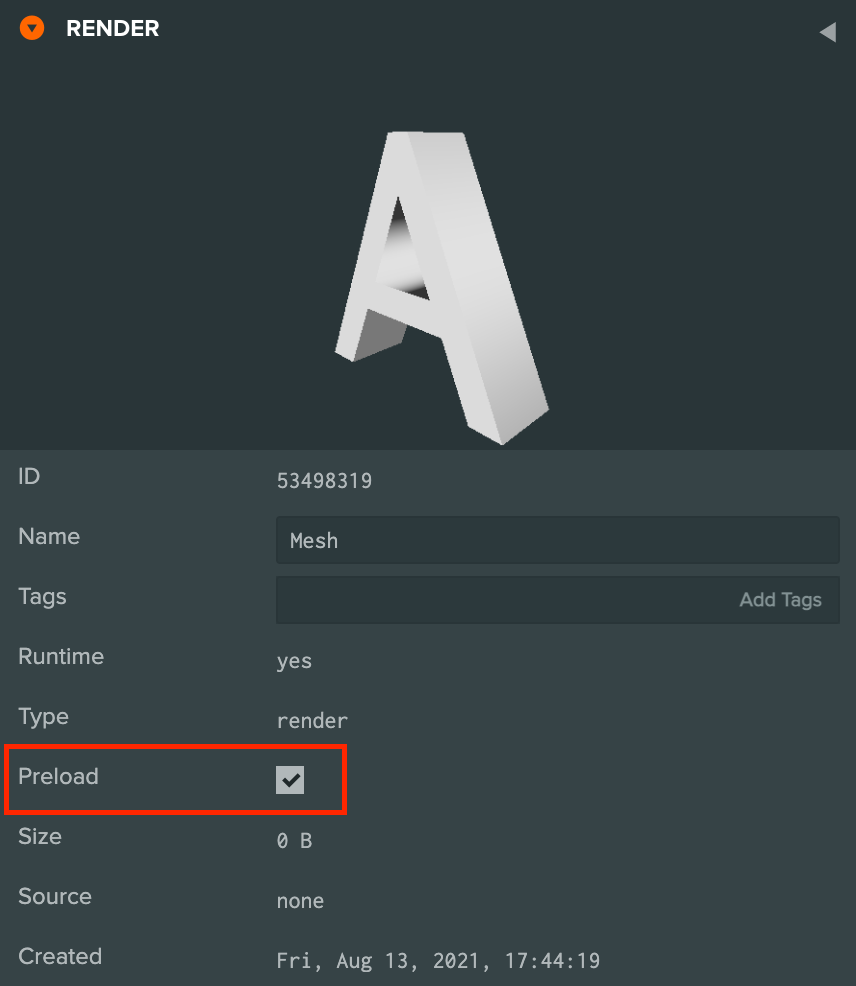
由于 A 和 B 模型已预加载,可以确定它们在应用运行时已经就绪。这段代码检查空格键是否按下,并相应切换渲染组件使用的资源。这里的 asset.resource 是 pc.Render 对象。对于音频、纹理等其他资源类型,asset.resource 则为对应类型。
在运行时加载资源
if (app.keyboard.isPressed(pc.KEY_C)) {
    if (this.c.loaded) {
        if (this.entity.render.asset !== this.c.id) {
            console.log('Changed to C Render Asset');
            this.entity.render.asset = this.c;
        }
    }
} else {
    if (this.entity.render.asset !== this.a.id) {
        // restore original Render Asset
        console.log('Changed to A Render Asset');
        this.entity.render.asset = this.a;
    }
}
C 渲染资源未标记为 preload,所以上面的代码会在使用前检查其是否加载。如果 asset.loaded 为 false,就不能切换到该渲染资源。加载完成后,this.c.resource 为 pc.Render,asset.loaded 为 true,此时即可进行分配。
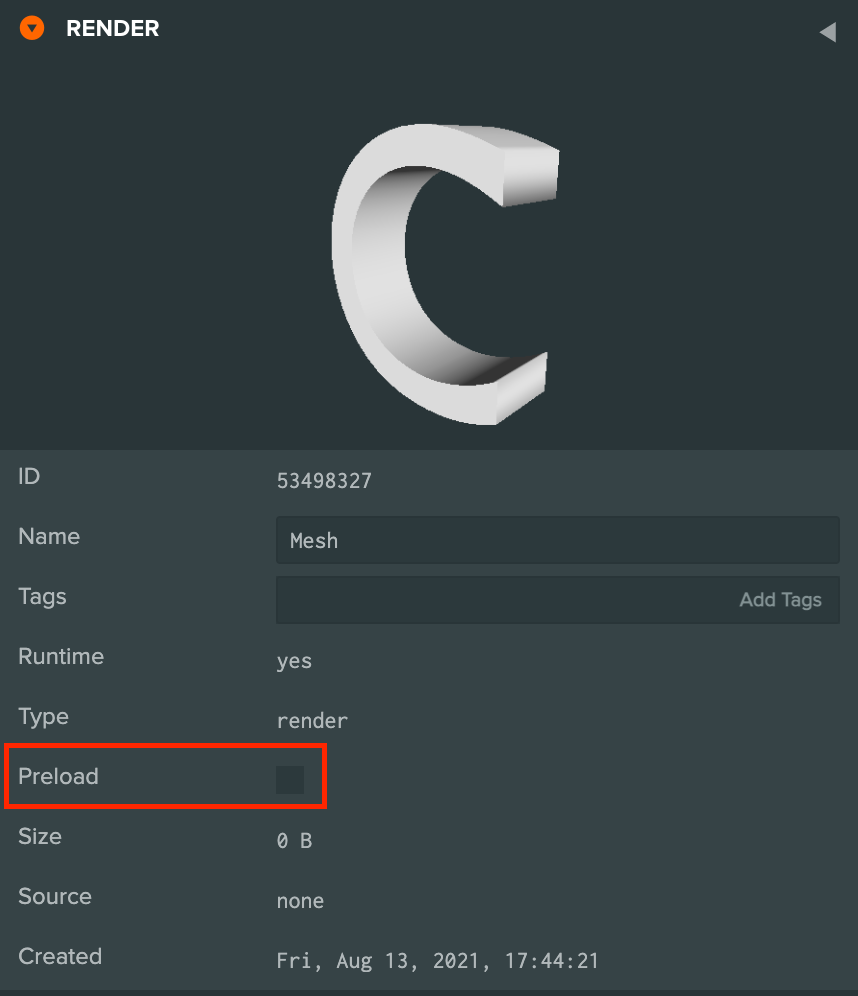
if (this.app.keyboard.isPressed(pc.KEY_L)) {
    this.app.assets.load(this.c);
}
按 L 键会加载 C 模型,方法是将尚未加载的资源传入 this.app.assets.load()。如果资源已经加载,该方法不会执行任何操作。
加载完成后,asset.resource 是 pc.Render 实例,按 C 键即可将该资源分配给渲染组件。
完整脚本
- ESM
- 传统脚本
import { Script, KEY_SPACE, KEY_C, KEY_L } from 'playcanvas';

export class UpdateAsset extends Script {
    static scriptName = "updateAsset";

    /**
     * @attribute
     * @title A
     * @type {Asset}
     * @resource render
     */
    a = null;

    /**
     * @attribute
     * @title B
     * @type {Asset}
     * @resource render
     */
    b = null;

    /**
     * @attribute
     * @title C
     * @type {Asset}
     * @resource render
     */
    c = null;

    // initialize code called once per entity
    initialize() {
        this.app.keyboard.preventDefault = true;
    }

    // update code called every frame
    update(dt) {
        var app = this.app;

        if (app.keyboard.isPressed(KEY_SPACE)) {
            if (this.entity.render.asset !== this.b.id) {
                // update the render component to the new Render Asset
                console.log('Changed to B Render Asset');
                this.entity.render.asset = this.b;
            }
        } else {
            if (app.keyboard.isPressed(KEY_C)) {
                if (this.c.loaded) {
                    if (this.entity.render.asset !== this.c.id) {
                        console.log('Changed to C Render Asset');
                        this.entity.render.asset = this.c;
                    }
                }
            } else {
                if (this.entity.render.asset !== this.a.id) {
                    // restore original Render Asset
                    console.log('Changed to A Render Asset');
                    this.entity.render.asset = this.a;
                }
            }
        }

        if (app.keyboard.isPressed(KEY_L)) {
            app.assets.load(this.c);
        }
    }
}
var UpdateAsset = pc.createScript('updateAsset');

UpdateAsset.attributes.add('a', {
    type: 'asset',
    assetType: 'render'
});

UpdateAsset.attributes.add('b', {
    type: 'asset',
    assetType: 'render'
});

UpdateAsset.attributes.add('c', {
    type: 'asset',
    assetType: 'render'
});

// initialize code called once per entity
UpdateAsset.prototype.initialize = function() {
    this.app.keyboard.preventDefault = true;
};

// update code called every frame
UpdateAsset.prototype.update = function(dt) {
    var app = this.app;

    if (app.keyboard.isPressed(pc.KEY_SPACE)) {
        if (this.entity.render.asset !== this.b.id) {
            // update the render component to the new Render Asset
            console.log('Changed to B Render Asset');
            this.entity.render.asset = this.b;
        }
    } else {
        if (app.keyboard.isPressed(pc.KEY_C)) {
            if (this.c.loaded) {
                if (this.entity.render.asset !== this.c.id) {
                    console.log('Changed to C Render Asset');
                    this.entity.render.asset = this.c;
                }
            }
        } else {
            if (this.entity.render.asset !== this.a.id) {
                // restore original Render Asset
                console.log('Changed to A Render Asset');
                this.entity.render.asset = this.a;
            }
        }
    }

    if (app.keyboard.isPressed(pc.KEY_L)) {
        app.assets.load(this.c);
    }
};
AssetRegistry 事件
上面的示例没有演示如何获知资源何时完成加载。为此可以监听 pc.AssetRegistry 的事件,例如 "load"。示例代码如下:
// find the asset by name in the registry
var asset = this.app.assets.find("A");
// set up a one-off event listener for the load event
this.app.assets.once("load", function (asset) {
    // asset.resource is now ready
}, this);
"load" 事件的范围较广,每个资源加载后都会触发。如果其他地方也在加载资源,就无法确认是不是目标资源。可以改用 "load:id" 事件缩小监听范围。
// find the asset in the registry
var asset = this.app.assets.find("A");
// set up a one-off event listener for the load event
this.app.assets.once("load:" + asset.id, function (asset) {
    // asset.resource is now ready
}, this);
上述事件只会为指定资源触发,因此更加实用。
最后还有一种经常出现的代码模式,我们为此提供了便捷方法。
var asset = this.app.assets.find("A");
if (!asset.loaded) {
    this.app.assets.once("load:" + asset.id, function (asset) {
        // do something with asset.resource
    });
    this.app.assets.load(asset);
} else {
    // do something with asset.resource
}
这段代码在需要时加载资源,但写起来稍显冗长。可以改用 asset.ready(),下面的代码与上面的功能相同:
var asset = this.app.assets.find("A");
asset.ready(function (asset) {
    // do something with asset.resource
});
this.app.assets.load(asset);
asset.ready() 在资源完成加载后立即调用回调;如果资源已经加载,则马上调用。资源已加载时,app.assets.load() 不执行任何操作。