制作简单游戏:第四部分
足球
足球是 Keepy Up 游戏的焦点:响应玩家输入、响应环境中的重力,还会发出声音。它可能是整个游戏最复杂的部分,下面尽量清楚地解释各个环节。
ball.js
- ESM
- 传统脚本
import { Script, Vec3 } from 'playcanvas';

export class Ball extends Script {
    static scriptName = "ball";

    /**
     * The value of gravity to use.
     *
     * @attribute
     * @title Gravity
     * @type {number}
     */
    gravity = -9.8;

    /**
     * Speed to set the ball to when it is tapped.
     *
     * @attribute
     * @title Default Tap
     * @type {number}
     */
    defaultTap = 5;

    /**
     * The particle effect to trigger when the ball is tapped.
     *
     * @attribute
     * @title Impact Effect
     * @type {Entity}
     */
    impactEffect = null;

    /**
     * When ball goes below minimum y value, game over is triggered.
     *
     * @attribute
     * @title Ball Minimum
     * @type {number}
     */
    ballMinimum = -6;

    /**
     * Multiplier to apply to X speed when tap is off center.
     *
     * @attribute
     * @title Speed Mult
     * @type {number}
     */
    speedMult = 4;

    /**
     * Multiplier to apply to angular speed when tap is off center.
     *
     * @attribute
     * @title Ang Mult
     * @type {number}
     */
    angMult = -6;

    static tmp = new Vec3();

    // initialize code called once per entity
    initialize() {
        this.paused = true;

        // Get the "Game" Entity and start listening for events
        this.game = this.app.root.findByName("Game");

        this.app.on("game:start", this.unpause, this);
        this.app.on("game:gameover", this.pause, this);
        this.app.on("game:reset", this.reset, this);

        // Initialize properties
        this._vel = new Vec3(0, 0, 0);
        this._acc = new Vec3(0, this.gravity, 0);
        this._angSpeed = 0;

        // Store the initial position and rotation for reseting
        this._origin = this.entity.getLocalPosition().clone();
        this._rotation = this.entity.getLocalRotation().clone();
    }

    // update code called every frame
    update(dt) {
        // Don't update when paused
        if (this.paused) {
            this.entity.rotate(0, 30 * dt, 0);
            return;
        }

        let p = this.entity.getLocalPosition();
        let tmp = Ball.tmp;

        // integrate the velocity in a temporary variable
        tmp.copy(this._acc).scale(dt);
        this._vel.add(tmp);

        // integrate the position in a temporary variable
        tmp.copy(this._vel).scale(dt);
        p.add(tmp);

        // update position
        this.entity.setLocalPosition(p);

        // rotate by angular speed
        this.entity.rotate(0, 0, this._angSpeed);

        // check for game over condition
        if (p.y < this.ballMinimum) {
            this.game.script.game.gameOver();
        }
    }

    /*
     * Called by the input handler to tap the ball up in the air
     * dx is the tap distance from centre of ball in x
     * dy is the tap distance from centre of ball in y
     */
    tap(dx, dy) {
        // Update velocity and spin based on position of tap
        this._vel.set(this.speedMult * dx, this.defaultTap, 0);
        this._angSpeed += this.angMult * dx;

        // calculate the position of the tap in world space
        let tmp = Ball.tmp;
        tmp.copy(this.entity.getLocalPosition());
        tmp.x -= dx;
        tmp.y -= dy;

        // trigger particle effect to tap position, facing away from the center of the ball
        this.impactEffect.setLocalPosition(tmp);
        this.impactEffect.particlesystem.reset();
        this.impactEffect.particlesystem.play();
        this.impactEffect.lookAt(this.entity.getPosition());

        // play audio
        this.entity.sound.play("bounce");

        // increment the score by 1
        this.game.script.game.addScore(1);
    }

    // Pause the ball update when not playing the game
    unpause() {
        this.paused = false;

        // start game with a tap
        this.tap(0, 0);
    }

    // Resume ball updating
    pause() {
        this.paused = true;
    }

    // Reset the ball to initial values
    reset() {
        this.entity.setLocalPosition(this._origin);
        this.entity.setLocalRotation(this._rotation);
        this._vel.set(0, 0, 0);
        this._acc.set(0, this.gravity, 0);
        this._angSpeed = 0;
    }
}
var Ball = pc.createScript('ball');

Ball.attributes.add('gravity', {
    type: 'number',
    default: -9.8,
    description: 'The value of gravity to use'
});

Ball.attributes.add('defaultTap', {
    type: 'number',
    default: 5,
    description: 'Speed to set the ball to when it is tapped'
});

Ball.attributes.add('impactEffect', {
    type: 'entity',
    description: 'The particle effect to trigger when the ball is tapped'
});

Ball.attributes.add('ballMinimum', {
    type: 'number',
    default: -6,
    description: 'When ball goes below minimum y value game over is triggered'
});

Ball.attributes.add('speedMult', {
    type: 'number',
    default: 4,
    description: 'Multiplier to apply to X speed when tap is off center'
});

Ball.attributes.add('angMult', {
    type: 'number',
    default: -6,
    description: 'Multiplier to apply to angular speed when tap is off center'
});

Ball.tmp = new pc.Vec3();

// initialize code called once per entity
Ball.prototype.initialize = function() {
    this.paused = true;

    // Get the "Game" Entity and start listening for events
    this.game = this.app.root.findByName("Game");

    this.app.on("game:start", this.unpause, this);
    this.app.on("game:gameover", this.pause, this);
    this.app.on("game:reset", this.reset, this);

    // Initialize properties
    this._vel = new pc.Vec3(0, 0, 0);
    this._acc = new pc.Vec3(0, this.gravity, 0);
    this._angSpeed = 0;

    // Store the initial position and rotation for reseting
    this._origin = this.entity.getLocalPosition().clone();
    this._rotation = this.entity.getLocalRotation().clone();
};

// update code called every frame
Ball.prototype.update = function(dt) {
    // Don't update when paused
    if (this.paused) {
        this.entity.rotate(0, 30*dt, 0);
        return;
    }

    var p = this.entity.getLocalPosition();
    var tmp = Ball.tmp;

    // integrate the velocity in a temporary variable
    tmp.copy(this._acc).scale(dt);
    this._vel.add(tmp);

    // integrate the position in a temporary variable
    tmp.copy(this._vel).scale(dt);
    p.add(tmp);

    // update position
    this.entity.setLocalPosition(p);

    // rotate by angular speed
    this.entity.rotate(0, 0, this._angSpeed);

    // check for game over condition
    if (p.y < this.ballMinimum) {
        this.game.script.game.gameOver();
    }
};

/*
 * Called by the input handler to tap the ball up in the air
 * dx is the tap distance from centre of ball in x
 * dy is the tap distance from centre of ball in y
 */
Ball.prototype.tap = function (dx, dy) {
    // Update velocity and spin based on position of tap
    this._vel.set(this.speedMult * dx, this.defaultTap, 0);
    this._angSpeed += this.angMult * dx;

    // calculate the position of the tap in world space
    var tmp = Ball.tmp;
    tmp.copy(this.entity.getLocalPosition());
    tmp.x -= dx;
    tmp.y -= dy;

    // trigger particle effect to tap position, facing away from the center of the ball
    this.impactEffect.setLocalPosition(tmp);
    this.impactEffect.particlesystem.reset();
    this.impactEffect.particlesystem.play();
    this.impactEffect.lookAt(this.entity.getPosition());

    // play audio
    this.entity.sound.play("bounce");

    // increment the score by 1
    this.game.script.game.addScore(1);
};

// Pause the ball update when not playing the game
Ball.prototype.unpause = function () {
    this.paused = false;

    // start game with a tap
    this.tap(0, 0);
};

// Resume ball updating
Ball.prototype.pause = function () {
    this.paused = true;
};

// Reset the ball to initial values
Ball.prototype.reset = function () {
    this.entity.setLocalPosition(this._origin);
    this.entity.setLocalRotation(this._rotation);
    this._vel.set(0,0,0);
    this._acc.set(0, this.gravity, 0);
    this._angSpeed = 0;
};
脚本属性
脚本顶部首先是一组定义好的脚本属性。它们让脚本中的数值可以在编辑器中编辑,这样做有三个主要好处。
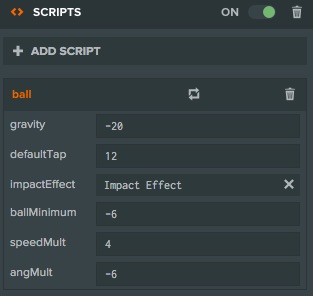
第一,同一脚本可用于多个实体,并配置不同数值。例如定义颜色脚本属性后,只需在编辑器中调整,就能创建红色、蓝色和绿色版本的实体。
第二,可以快速微调脚本行为。修改脚本属性或其他编辑器属性时,所有从编辑器启动的游戏实例都会立即应用变化。例如这里的 ballMinimum,可以在游戏运行时直接测试哪个数值能让足球从屏幕底部掉出,无需重新加载游戏:测试、修改、再测试。
这就是迭代速度。修改和测试游戏越快,开发进度也越快。
足球脚本定义了重力、点击时施加的冲量等玩法属性,使我们能迅速将游戏调整到理想状态。
第三,脚本属性适合将脚本与场景实体或资源关联。例如,点击足球时需要触发另一实体上的粒子效果。定义名为 impactEffect、类型为 entity 的脚本属性,再在编辑器中关联粒子实体,脚本就得到了实体引用。以后修改实体或改用其他实体,都无需破坏代码。
物理模拟
具备基础向量数学知识的读者应该很容易理解足球的 update() 循环。下面为其他读者简要解释游戏中如何模拟球体。
简单的模拟方法是为对象赋予加速度、速度和位置。每个时间步或每帧中,加速度改变速度,速度改变位置,然后在新位置绘制对象。加速度是速度的变化率,速度是位置的变化率。
有三种方式影响对象位置:
- 改变加速度:适合持续一段时间施加的力,例如足球所受重力。
- 改变速度:产生瞬间变化,例如球撞到地面后弹起。
- 改变位置:相当于传送,现实中没有直接对应的行为。
本例通过恒定加速度模拟重力;点击足球时瞬间改变速度;重置游戏时将球传送回初始位置。
执行模拟
更新循环执行以下操作:
速度变化量 = 加速度 × 距上一帧的时间
新速度 = 旧速度 + 速度变化量
位置变化量 = 新速度 × 距上一帧的时间
新位置 = 旧位置 + 位置变化量
对应代码如下:
var p = this.entity.getLocalPosition();

// integrate the velocity in a temporary variable
tmp.copy(this._acc).scale(dt);
this._vel.add(tmp);

// integrate the position in a temporary variable
tmp.copy(this._vel).scale(dt);
p.add(tmp);

// update position
this.entity.setLocalPosition(p);
注意,我们使用临时向量 tmp 存储中间结果,而不是每帧创建新向量。此外,必须调用 setLocalPosition 才会应用更新后的位置。
最后,通过 entity.rotate() 按角速度旋转足球。虽然物理上不够精确,但视觉效果不错。
响应输入
前文的 input.js 脚本检测输入是否命中足球,命中后调用 tap()。上面定义的 tap() 直接修改足球速度和角速度,并通过脚本属性 this.speedMult 与 this.angMult 乘以相应系数,使运动符合玩法预期。
tap 方法还会在撞击点触发尘土粒子并播放音效。第五部分将介绍粒子与声音。
小结
足球脚本通过简单物理模拟,让球受重力下落并响应点击;监听游戏事件以暂停和重置;同时与其他系统交互,显示粒子效果并播放声音。