使用 Google H5 Ads 测试版变现
本教程的相关链接:
简介
本教程介绍如何将 Google H5 Games Ads 测试版广告接入游戏,实现变现。
广告主要有两种形式:
插屏广告出现在游戏过程的间隙,例如从游戏结束返回主菜单时,类似电视节目的广告时段。
在 Flappy Bird 示例中,玩家死亡并返回主菜单准备重新开始时显示广告。
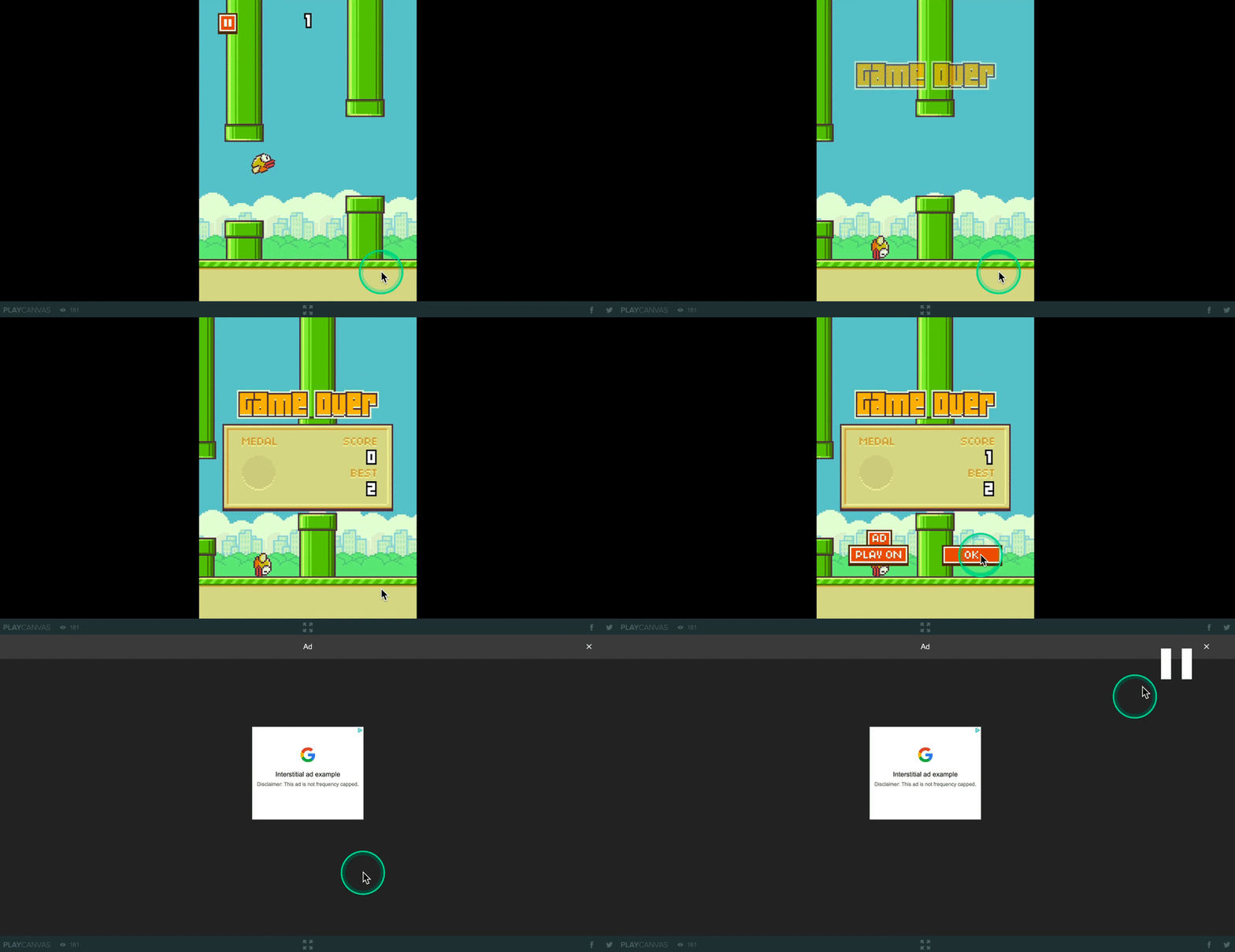
第二种是激励广告,玩家可以选择观看以获得金币、继续游戏等奖励。这类广告通常较有效,因为玩家可以自主选择,并立即得到游戏内奖励。
本例允许玩家观看激励广告后在死亡位置继续游戏,通常能提供较强的观看动机。
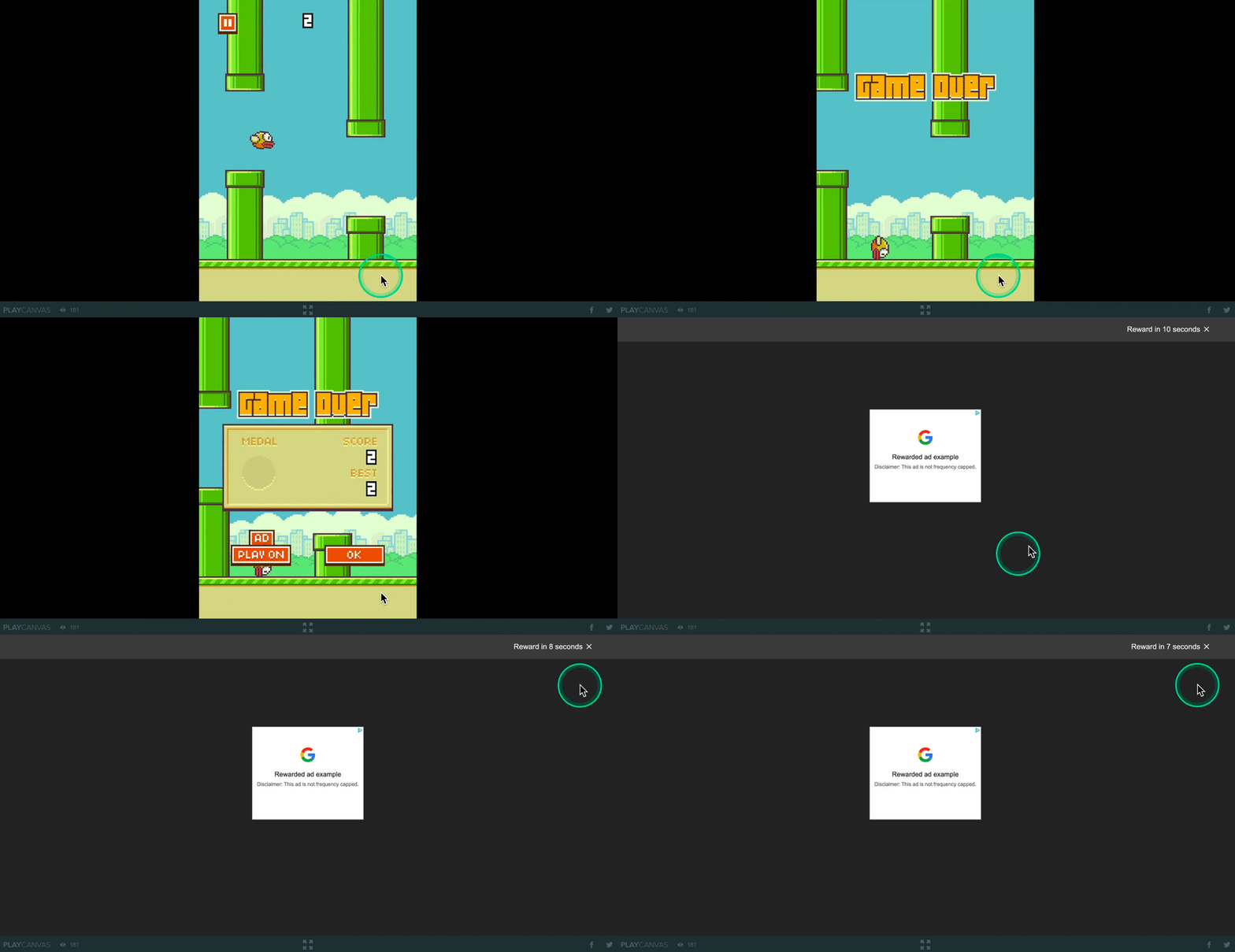
本教程将派生 Google H5 Ad Tutorial (Start),逐步添加广告 SDK 与功能。
最终效果如下,通过按钮调用插屏和激励广告,刷新按钮用于检查是否可展示激励广告,后文会解释。
准备工作
使用 Google H5 Games Ads 需要创建 Google AdSense 账户,获取用于广告接入的发布商 ID。
还需要阅读 Google H5 Games Ads 政策,并按原教程的测试版申请流程注册。
打开 Google H5 Ad Tutorial (Start) 项目控制台,点击 Fork 派生项目。
此项目已经准备好基础结构,我们将在 ui-controller.js 中为按钮点击回调添加展示广告的逻辑:
- 传统脚本
- ESM
// ...
// initialize code called once per entity
UiController.prototype.initialize = function() {
    this.rewardedGivenPanelEntity.enabled = false;
    this.rewardedAdButtonEntity.button.active = false;

    var onRefresh = function () {

    }.bind(this);

    this.refreshButtonEntity.button.on('click', function (e) {
        onRefresh();
    }, this);

    this.interstitialAdButtonEntity.button.on('click', function(e) {

    }, this);

    this.rewardedAdButtonEntity.button.on('click', function (e) {

    }, this);

    this.okRewardButtonEntity.button.on('click', function (e) {
        this.rewardedGivenPanelEntity.enabled = false;
    }, this);
};
// ...
// initialize code called once per entity
initialize() {
    this.rewardedGivenPanelEntity.enabled = false;
    this.rewardedAdButtonEntity.button.active = false;

    const onRefresh = () => {}

    this.refreshButtonEntity.button.on('click', onRefresh)

    this.interstitialAdButtonEntity.button.on('click', (e) => {

    });

    this.rewardedAdButtonEntity.button.on('click', (e) => {

    });

    this.okRewardButtonEntity.button.on('click', (e) => {

    });
};
首先添加 Google SDK 接入文件,可从 Flappy Bird 项目复制 Google H5 Games Ads 文件夹。
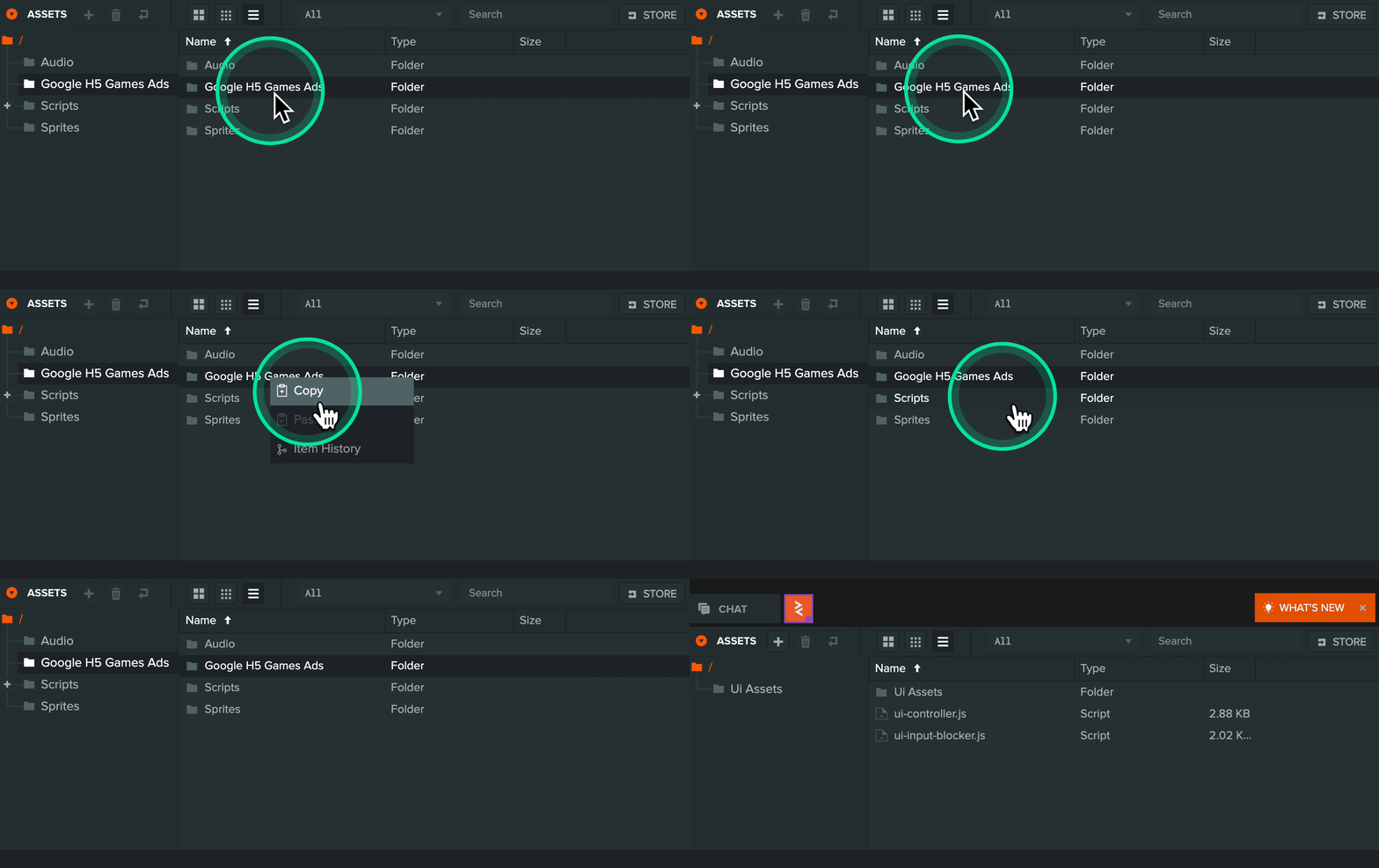
再粘贴到派生的教程项目中。
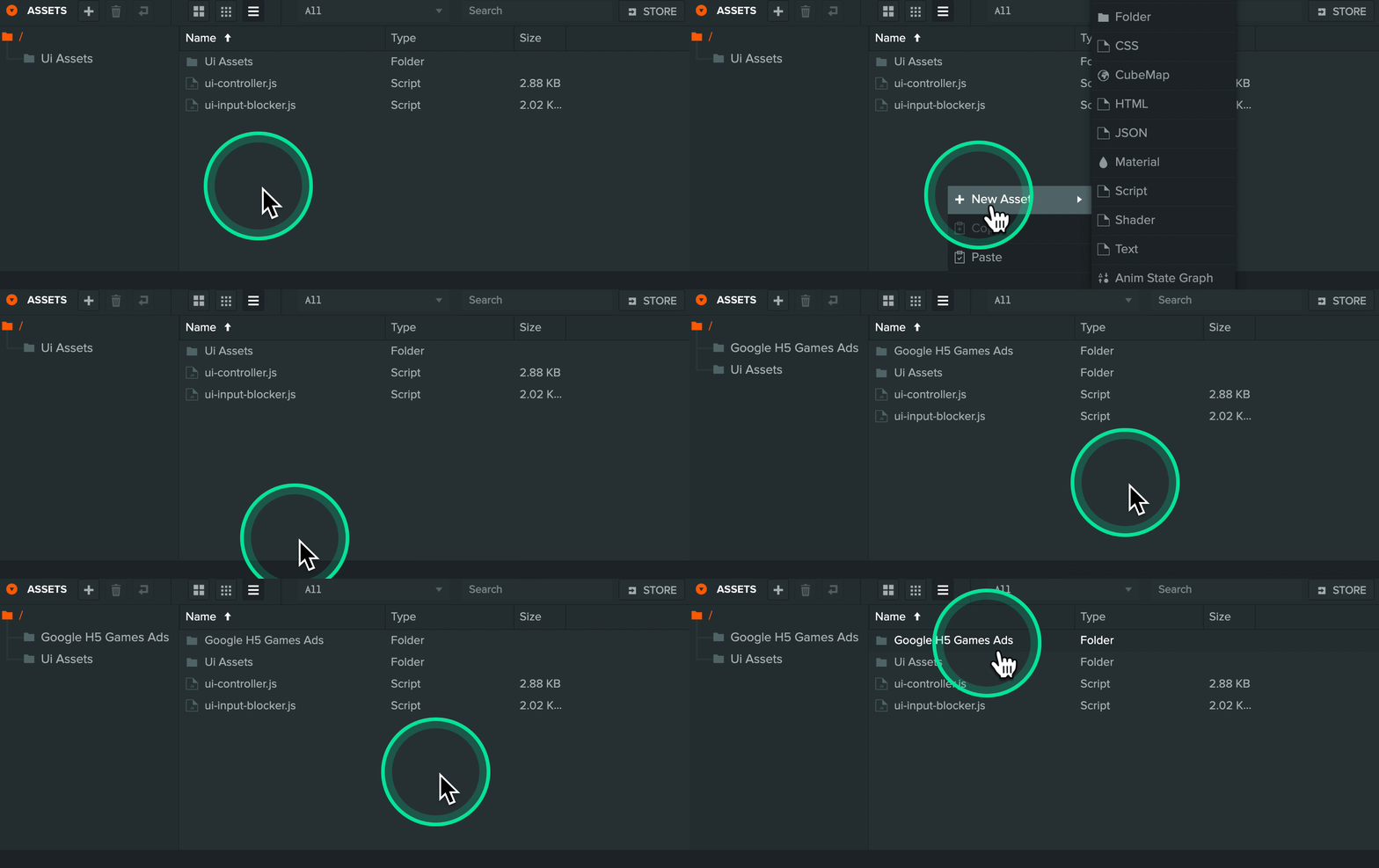
下面查看其中内容:
afg-integration.js 将 Google SDK 添加到页面,并设置用户两次看到广告之间的间隔,可根据需要调整。本教程启用了测试模式,显示占位内容而非真实广告。
将 ca-pub-XXXXXXXXX 替换为自己 Google AdSense 的发布商 ID。
// https://developers.google.com/ad-placement/docs/example
(function() {
    var script = document.createElement('script');
    script.setAttribute('crossorigin', 'anonymous');

    // Comment out to disable test mode
    script.setAttribute('data-adbreak-test', 'on');

    // Ad frequency is user configuble
    // https://developers.google.com/ad-placement/docs/ad-rate
    script.setAttribute('data-ad-frequency-hint', '30s');

    // Comment in if you would like to use a specific channel for ad reporting
    // https://developers.google.com/ad-placement/docs/advanced-reporting
    // script.setAttribute('data-ad-channel', 'XXXXXX');

    script.src = 'https://pagead2.googlesyndication.com/pagead/js/adsbygoogle.js?client=ca-pub-XXXXXXXXX';
    document.head.appendChild(script);
})();
afg-setup.js 是简化广告操作的封装,配置 Google SDK,并提供展示广告前暂停游戏、展示后恢复游戏的辅助函数。
包括:
- 禁用或启用输入。
- 静音或恢复声音。
- 设置或重置时间缩放。
- 禁用或启用渲染。
(function () {
    var app = pc.Application.getApplication();

    window.adsbygoogle = window.adsbygoogle || [];
    var afg = {};

    afg.adBreak = window.adConfig = function (o) { adsbygoogle.push(o); };
    afg.ready = false;

    var onReady = function () {
        afg.ready = true;
    };

    // Config the ad setup
    adConfig({
        // https://developers.google.com/ad-placement/docs/preload-ads
        preloadAdBreaks: 'on',
        // https://developers.google.com/ad-placement/docs/manual-sequence
        onReady: onReady,
    });

    // Create help functions to disable input and sound
    var _mouseTargetElement = null;
    var _keyboardTargetElement = null;
    var _touchTargetElement = null;
    var _beforeAdVolume = null;
    var _beforeAdTimeScale = null;
    var _beforeAutoRender = null;

    var beforeAdCalled = false;

    afg.onBeforeAd = function () {
        // Currently using private API for this. May need to be updated
        // if PlayCanvas engine is updated
        _mouseTargetElement = app.mouse._target;
        _keyboardTargetElement = app.keyboard._element;

        if (app.touch) {
            _touchTargetElement = app.touch._element;
        }

        _beforeAdVolume = app.systems.sound.volume;
        _beforeAdTimeScale = app.timeScale;
        _beforeAutoRender = app.autoRender;

        app.systems.sound.volume = 0;
        app.timeScale = 0;
        app.autoRender = false;

        beforeAdCalled = true;
    };

    afg.onAfterAd = function () {
        // Protect against assigning a null element in case this is called
        // without onBeforeAd being called
        if (beforeAdCalled) {
            app.mouse.attach(_mouseTargetElement);
            app.keyboard.attach(_keyboardTargetElement);

            if (app.touch) {
                app.touch.attach(_touchTargetElement);
            }

            app.systems.sound.volume = _beforeAdVolume;
            app.timeScale = _beforeAdTimeScale;
            app.autoRender = _beforeAutoRender;
        }

        beforeAdCalled = false;
    };

    window.afg = afg;
})();
添加插屏广告
先为项目添加插屏广告。
在 ui-controller.js 的插屏广告按钮点击回调中加入:
- 传统脚本
// ...
this.interstitialAdButtonEntity.button.on('click', function(e) {
    if (afg.ready) {
        afg.adBreak({
            type: 'start',
            name: 'test-interstitial',
            beforeAd: function() { afg.onBeforeAd(); }.bind(this),
            adBreakDone: function() { afg.onAfterAd(); onRefresh(); }.bind(this)
        });
    }
}, this);
// ...
这里首先检查 Google SDK 是否就绪,再调用其提供的 adBreak。更多选项见官方文档。本例使用:
type:必须是 Google SDK 文档规定的类型之一。name:任意名称,用于 H5 Games Ads 报表。beforeAd:广告展示前执行的回调。adBreakDone:广告流程结束后的回调,即使因某种原因未展示也会调用。
回调中调用辅助函数 onBeforeAd 和 onAfterAd,处理前文提到的通用暂停与恢复行为。如果游戏还有特殊需要,可在这里加入自定义逻辑。
实际效果如下:
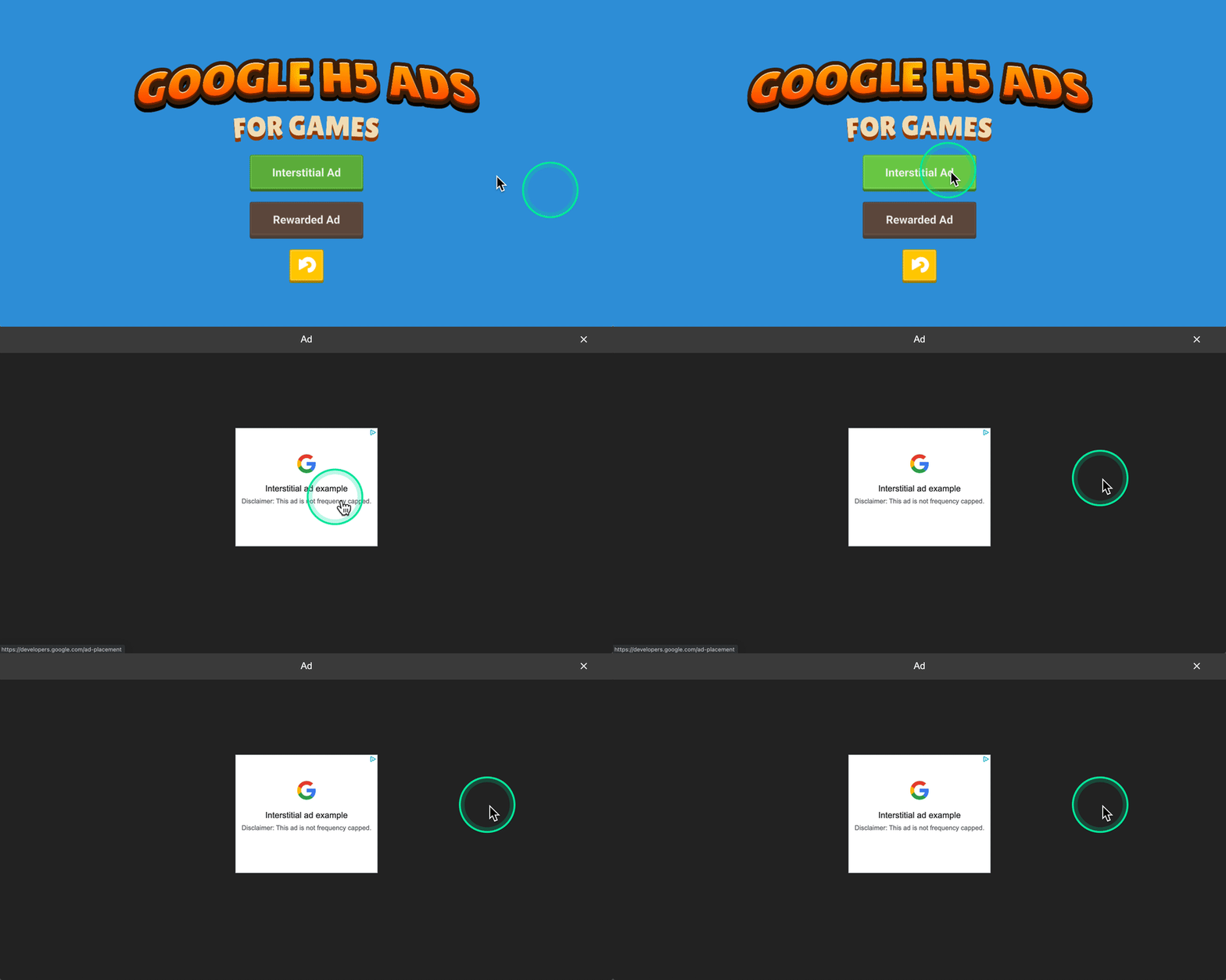
游戏中每个计划展示插屏的位置都应调用 adBreak,由 Google SDK 决定是否实际展示,包括参考之前在 afg-integration.js 中设置的广告频率提示。
添加激励广告
激励广告的流程略有不同,整体逻辑如下:
- 调用
adBreak检查是否存在可用激励广告。 - 若可用,SDK 提供展示广告的函数。
- 向玩家显示按钮,让其选择观看并领取奖励。
- 按钮点击后,调用 SDK 提供的函数展示广告。
看看 Flappy Bird 示例如何实现观看广告后继续游戏。
// ...
app.on('game:gameover', function () {
    app.root.findByName('Game Screen').enabled = false;
    app.root.findByName('Game Over Screen').enabled = true;

    app.fire('pipes:stop');
    app.fire('ground:stop');
    app.fire('ui:fadeingameover');
    app.fire('ui:showscoreboard', this.score, this.bestScore);

    // Check if we have a new high score and write it to local storage
    if (this.score > this.bestScore) {
        this.bestScore = this.score;
        if (storageAvailable('localStorage')) {
            localStorage.setItem('Flappy Bird Best Score', this.score.toString());
        }
    }

    this.showAdButtonContainerEntity.enabled = false;

    // Call rewarded ad adBreak() to see if we can actually play an ad
    if (afg.ready) {
        afg.adBreak({
            type: 'reward',
            name: 'play-on',
            beforeReward: function(showAdFn) {
                this.showAdFn = showAdFn;
                this.showAdButtonContainerEntity.enabled = true;
            }.bind(this),
            adViewed: function() {
                afg.onAfterAd();
                app.fire('game:getready', this.score);
            }.bind(this),
            adDismissed: function() {
                afg.onAfterAd();
                app.fire('game:menu', true);
            }.bind(this),
            adBreakDone: function(placementInfo) { }.bind(this)
        });
    }

    setTimeout(function () {
        app.fire('game:audio', 'Swoosh');
    }, 500);
}, this);
// ...
游戏结束时,以 reward 类型调用 adBreak,并提供 beforeReward、adViewed 和 adDismissed 回调。
存在广告时调用 beforeReward,传入展示广告的函数,此时显示观看按钮。
广告播放完成后 SDK 调用 adViewed,游戏可以发放奖励。本例重新开始游戏,但不将分数归零。
如果玩家在完成前关闭广告,SDK 调用 adDismissed。此时不应发放奖励,并将玩家送回主菜单。
现在将该功能加入项目。
使用刷新按钮检查激励广告是否可展示。在按钮调用的 onRefresh 中加入:
// ...
var onRefresh = function () {
    this.rewardedAdButtonEntity.button.active = false;

    // Check if rewarded ad is available to view
    if (afg.ready) {
        afg.adBreak({
            type: 'reward',
            name: 'test-reward',
            beforeReward: function(showAdFn) {
                this._showRewardAdFn = showAdFn;
                this.rewardedAdButtonEntity.button.active = true;
            }.bind(this),
            adViewed: function() {
                afg.onAfterAd();
                this.rewardedGivenPanelEntity.enabled = true;
                this.rewardedAdButtonEntity.button.active = false;
                this._showRewardAdFn = null;
            }.bind(this),
            adDismissed: function() {
                afg.onAfterAd();
                this.rewardedAdButtonEntity.button.active = false;
                this._showRewardAdFn = null;
            }.bind(this),
            adBreakDone: function(placementInfo) { }.bind(this)
        });
    }
}.bind(this);
// ...
刷新按钮按下后,先禁用奖励按钮实体,使其不可见并回到已知状态。
在 beforeReward 中保存展示函数引用,并启用奖励按钮,因为此时已确认存在可展示广告。
在 adViewed 中调用 onAfterAd 恢复游戏,并向玩家显示奖励。
在 adDismissed 中只确保奖励按钮禁用,因为不会发放奖励。
adBreakDone 必须提供回调,但本例不需要处理,因此函数为空。传入的 placementInfo 对象包含错误消息等广告信息,调试时很有用。
接下来需要在激励广告按钮按下时展示广告。为按钮点击回调添加:
// ...
this.rewardedAdButtonEntity.button.on('click', function (e) {
    if (this._showRewardAdFn) {
        afg.onBeforeAd();
        this._showRewardAdFn();
    }
}, this);
// ...
首先检查是否已获得 SDK 展示函数。如果有,调用 onBeforeAd() 暂停游戏,再调用该函数展示广告。
效果如下:
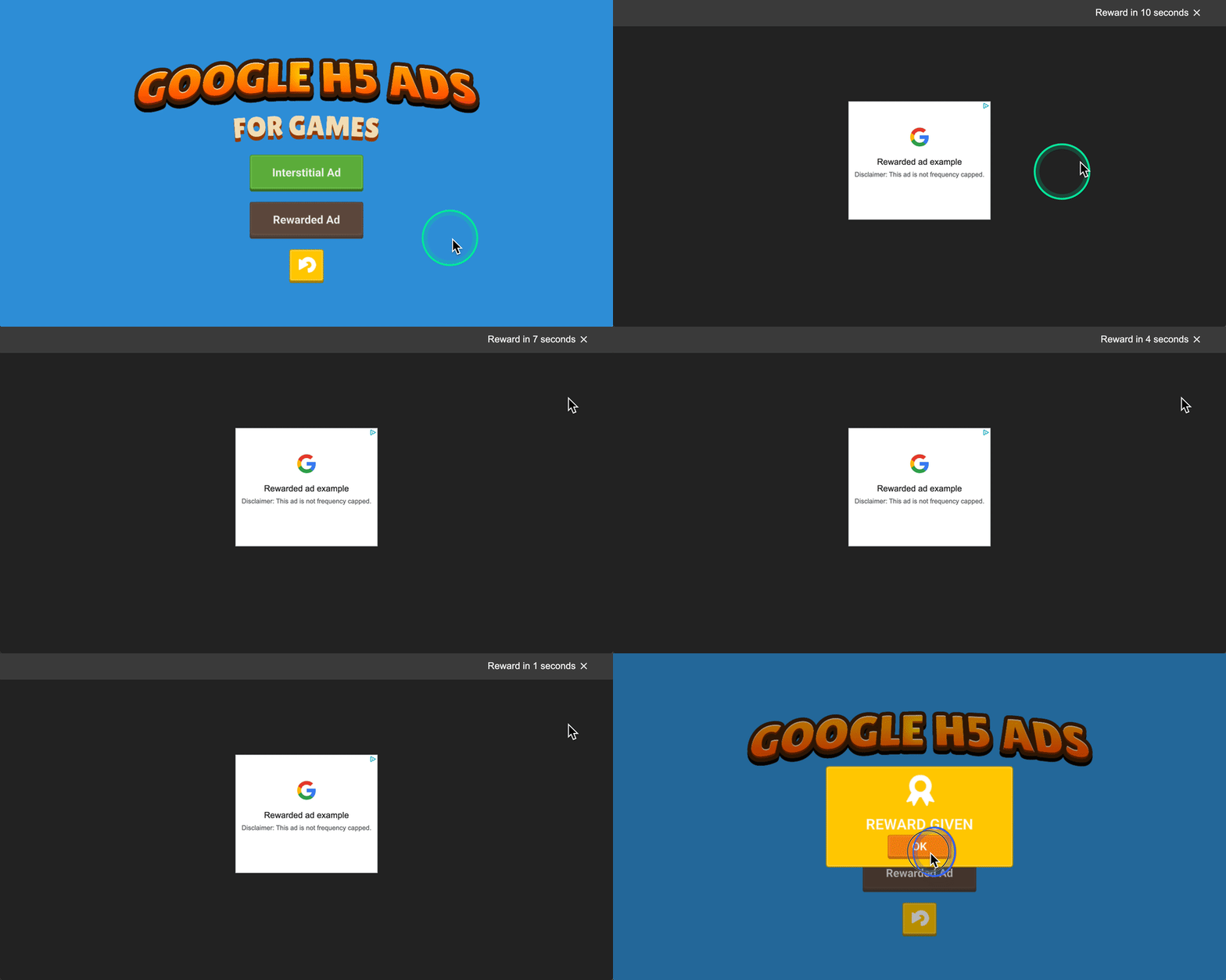
完整的 ui-controller.js 如下:
- ESM
- 传统脚本
import { Script } from 'playcanvas';

export class UiController extends Script {
    static scriptName = "uiController";

    /**
     * @attribute
     * @title Refresh Button Entity
     * @type {Entity}
     */
    refreshButtonEntity = null;

    /**
     * @attribute
     * @title Interstitial Ad Button Entity
     * @type {Entity}
     */
    interstitialAdButtonEntity = null;

    /**
     * @attribute
     * @title Rewarded Ad Button Entity
     * @type {Entity}
     */
    rewardedAdButtonEntity = null;

    /**
     * @attribute
     * @title OK Rewarded Button Entity
     * @type {Entity}
     */
    okRewardButtonEntity = null;

    /**
     * @attribute
     * @title Rewarded Given Entity
     * @type {Entity}
     */
    rewardedGivenPanelEntity = null;

    // initialize code called once per entity
    initialize() {
        this._showRewardAdFn = null;

        this.rewardedGivenPanelEntity.enabled = false;
        this.rewardedAdButtonEntity.button.active = false;

        const onRefresh = () => {
            this.rewardedAdButtonEntity.button.active = false;

            // Check if rewarded ad is available to view
            if (afg.ready) {
                afg.adBreak({
                    type: 'reward',
                    name: 'test-reward',
                    beforeReward: function(showAdFn) {
                        this._showRewardAdFn = showAdFn;
                        this.rewardedAdButtonEntity.button.active = true;
                    }.bind(this),
                    adViewed: () => {
                        afg.onAfterAd();
                        this.rewardedGivenPanelEntity.enabled = true;
                        this.rewardedAdButtonEntity.button.active = false;
                        this._showRewardAdFn = null;
                    },
                    adDismissed: () => {
                        afg.onAfterAd();
                        this.rewardedAdButtonEntity.button.active = false;
                        this._showRewardAdFn = null;
                    },
                    adBreakDone: function(placementInfo) { }.bind(this)
                });
            }
        };

        this.refreshButtonEntity.button.on('click', (e) => {
            onRefresh();
        }, this);

        this.interstitialAdButtonEntity.button.on('click', (e) => {
            if (afg.ready) {
                afg.adBreak({
                    type: 'start',
                    name: 'test-interstitial',
                    beforeAd: () => { afg.onBeforeAd(); },
                    adBreakDone: () => { afg.onAfterAd(); onRefresh(); }
                });
            }
        }, this);

        this.rewardedAdButtonEntity.button.on('click', (e) => {
            if (this._showRewardAdFn) {
                afg.onBeforeAd();
                this._showRewardAdFn();
            }
        }, this);

        this.okRewardButtonEntity.button.on('click', (e) => {
            this.rewardedGivenPanelEntity.enabled = false;
        }, this);
    }
}
var UiController = pc.createScript('uiController');
UiController.attributes.add('refreshButtonEntity', {type: 'entity', title: 'Refresh Button Entity'});
UiController.attributes.add('interstitialAdButtonEntity', {type: 'entity', title: 'Interstitial Ad Button Entity'});
UiController.attributes.add('rewardedAdButtonEntity', {type: 'entity', title: 'Rewarded Ad Button Entity'});
UiController.attributes.add('okRewardButtonEntity', {type: 'entity', title: 'OK Rewarded Button Entity'});
UiController.attributes.add('rewardedGivenPanelEntity', {type: 'entity', title: 'Rewarded Given Entity'});


// initialize code called once per entity
UiController.prototype.initialize = function() {
    this._showRewardAdFn = null;

    this.rewardedGivenPanelEntity.enabled = false;
    this.rewardedAdButtonEntity.button.active = false;

    var onRefresh = function () {
        this.rewardedAdButtonEntity.button.active = false;

        // Check if rewarded ad is available to view
        if (afg.ready) {
            afg.adBreak({
                type: 'reward',
                name: 'test-reward',
                beforeReward: function(showAdFn) {
                    this._showRewardAdFn = showAdFn;
                    this.rewardedAdButtonEntity.button.active = true;
                }.bind(this),
                adViewed: function() {
                    afg.onAfterAd();
                    this.rewardedGivenPanelEntity.enabled = true;
                    this.rewardedAdButtonEntity.button.active = false;
                    this._showRewardAdFn = null;
                }.bind(this),
                adDismissed: function() {
                    afg.onAfterAd();
                    this.rewardedAdButtonEntity.button.active = false;
                    this._showRewardAdFn = null;
                }.bind(this),
                adBreakDone: function(placementInfo) { }.bind(this)
            });
        }
    }.bind(this);

    this.refreshButtonEntity.button.on('click', function (e) {
        onRefresh();
    }, this);

    this.interstitialAdButtonEntity.button.on('click', function(e) {
        if (afg.ready) {
            afg.adBreak({
                type: 'start',
                name: 'test-interstitial',
                beforeAd: function() { afg.onBeforeAd(); }.bind(this),
                adBreakDone: function() { afg.onAfterAd(); onRefresh(); }.bind(this)
            });
        }
    }, this);

    this.rewardedAdButtonEntity.button.on('click', function (e) {
        if (this._showRewardAdFn) {
            afg.onBeforeAd();
            this._showRewardAdFn();
        }
    }, this);

    this.okRewardButtonEntity.button.on('click', function (e) {
        this.rewardedGivenPanelEntity.enabled = false;
    }, this);
};
完成接入
Google H5 Games Ads 在 H5 游戏和应用中的基础接入到此完成。
完成后的项目在此,有关 SDK 和 API 的更多信息见 Google 文档。
注意:本教程使用测试模式,不会展示真实广告。关闭测试模式用于正式发布时,应遵守发行地区适用的隐私与 Cookie 政策,包括 GDPR;通常需要实现相应的 Cookie 同意流程。